
Background music
Background music plays while the bot processes a request, so callers hear music instead of silence during the conversation. This feature is available with both Trial and Essential plans. See Account plans.
Background music does not apply to assist bots or voice translation.
Enable background music
You enable background music for each bot connection, on the connection's Features tab.
To enable background music on a bot connection:
-
In the Navigation pane, select Bot connections.
-
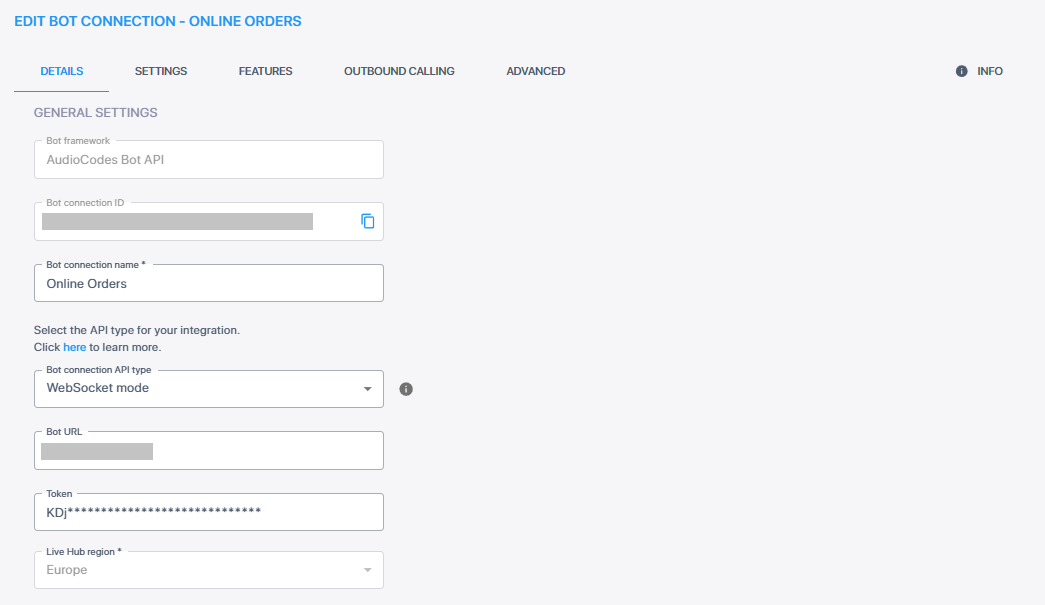
On the bot connection you want music on, click Edit.
-
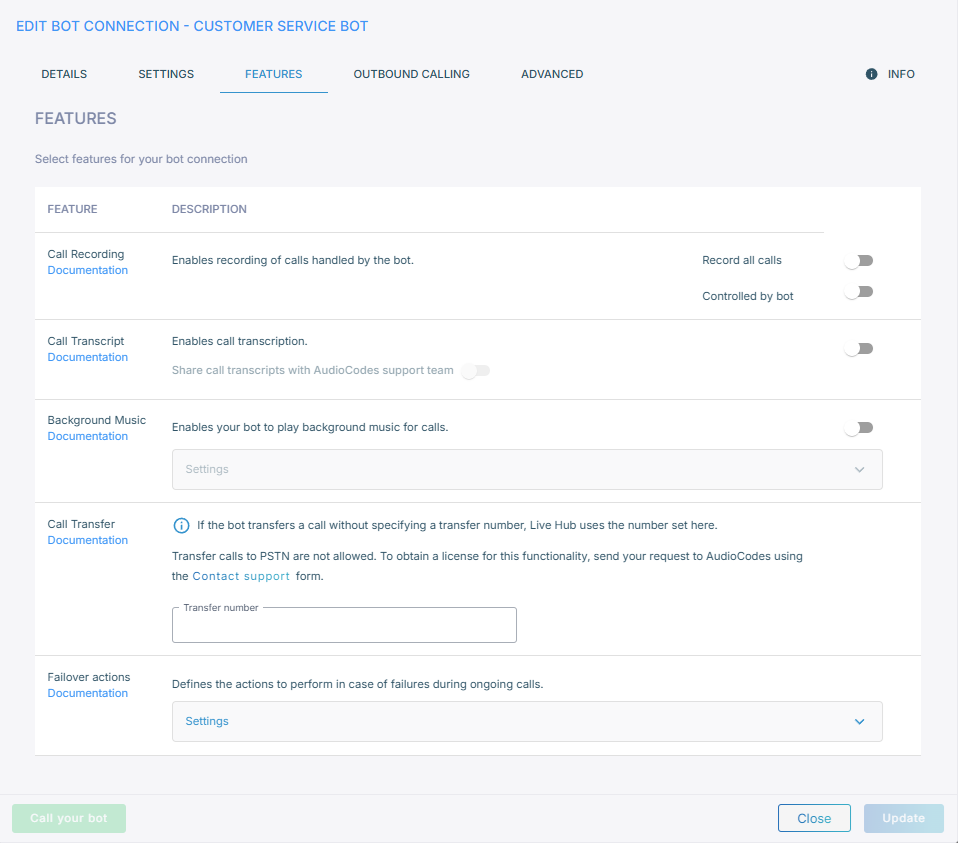
Select the Features tab.
-
Under 'Select features for your bot connection', turn on the Background Music toggle. The settings under it then become available.
-
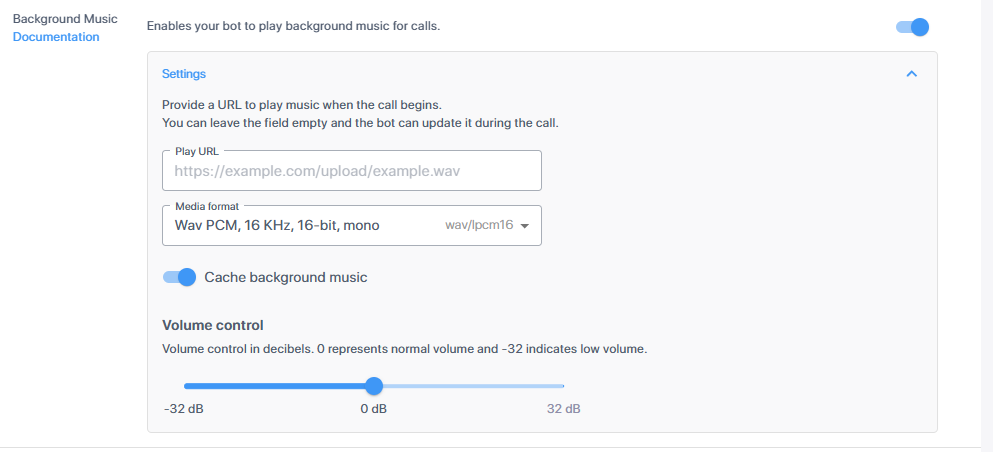
Expand Settings, and then set the following:
- 'Play URL' gives the location of the audio. Leave it empty to have the bot supply the URL during the call instead.
- 'Media format' sets the format of that audio, and defaults to
wav/lpcm16. See Media formats. - 'Cache background music' caches the file, which lets large files stream. Turn it off if you replace the audio often without changing its URL.
- Volume runs from -32 to +32 dB, with a default of 0.
-
Click Update.
How the bot sets the music
If you leave Play URL empty, the bot can choose the audio source during the call. To set the audio, the bot sends a config event through the AudioCodes Bot API.
Background music must be enabled on the bot connection. The bot cannot start background audio when the Background Music setting is turned off.
| Parameter | Type | Description |
|---|---|---|
backgroundPlayURL
|
string | Where the audio comes from. Set it to null to stop playback. |
backgroundPlayMediaFormat
|
string | Format of that audio. See Media formats. |
backgroundPlayVolume
|
number | Playback level in dB, from -32 to +32. Default 0. |
backgroundPlayUrlCaching
|
boolean | Caches the file. Default false. |
{
  "type": "event",
  "name": "config",
  "sessionParams": {
    "backgroundPlayURL": "https://example.com/audio-ulaw.wav",
    "backgroundPlayMediaFormat": "wav/ulaw",
    "backgroundPlayVolume": -5
  }
}
The bot can send the event again at any point to change the audio, adjust the volume, or stop playback.
Media formats
The following table shows which media formats you can use for background music and which formats are not supported.
| Supported | Not supported |
|---|---|
raw/lpcm16, wav/lpcm16 |
raw/alaw
|
raw/lpcm16_8, wav/lpcm16_8 |
wav/alaw
|
raw/lpcm16_24, wav/lpcm16_24 |
|
raw/ulaw, wav/ulaw |